


View your timetable, mark your attendance and submit authorised absence requests, all in one place.
Through the "SEAtS Mobile" app, recording your attendance is as quick as a tap – simply go to your timetabled room, check into the app to mark your attendance and you're all set to go!
Downloading the app
You can download the app by searching for "SEAtS Mobile" in the Apple App store and the Google Playstore or through the buttons below :


To log into the app, you will need to use your legacy City email address (Firstname.Lastname@city.ac.uk) and respective password.
When logging in for the first time, you will also be prompted to verify your account through the use of a Multi-Factor Authentication. Please refer to our Multi-Factor Authentication set-up guide on IT Self-Service for more information.
Necessary settings
When using the app, you will need to apply the following three settings:
1. Wi-Fi
The app needs to be connected to Wi-Fi in order to accurately record and update your attendance. Across our campuses, we have free Wi-Fi available to all our current students via Eduroam.
2. Bluetooth and Location settings
The app checks you in through the use of Bluetooth and Location, so it is pivotal you allow the app access to this.
When using the app for the first time, you will be prompted to grant the app access to your Bluetooth and Location. If these settings are not switched on when using the app, you will not be able to mark your attendance.
3. Notifications
Allowing notifications from the SEAtS app makes checking in easy (a simple click) and helps ensure you arrive to class on time.
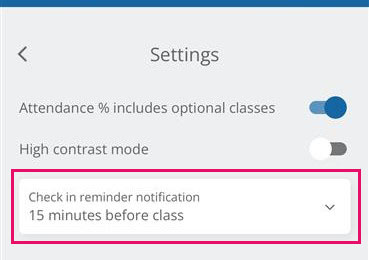
Within the app you can also amend when you receive the check-in reminder, however we recommend you set this reminder for 15 minutes before class. You can do so by:
Open the app > Click "More" in the bottom right-hand corner of the screen > Click "Settings" > Choose "15 minutes before class" in the dropdown.
4. Attendance % includes optional classes
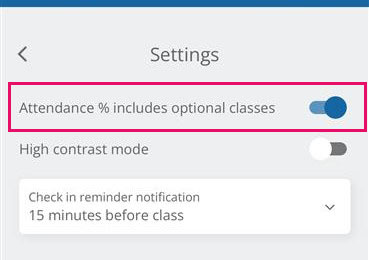
Within the app, you will need to change the setting to include your optional classes into your overall attendance percentage. You can do so by:
Open the app > Click "More" in the bottom right-hand corner of the screen > Click "Settings" > Change the toggle to switch on the "Attendance % includes optional classes" setting.
Mark your attendance in five easy steps


Why is it important we record attendance?
Recording attendance helps us support you throughout your time at City St George’s, ensure you're engaging in your studies and developing to your full potential. We know that engaging well in your studies helps you succeed and develop to your full potential, while inconsistent attendance could have a negative impact on academic performance.
By using the SEAtS mobile app, we are able to improve the way attendance data is recorded and used and identify moments when you may need more support. If you miss classes, we can quickly reach out to you to check if everything is OK and direct you to the relevant teams that can help.
You’re in control of your attendance
-
Personalised timetable
Through the app, you will have access to your own personalised timetable containing all your scheduled classes.
-
Authorised Absences
Through the "Requests" section of the app, you will be able to submit requests for authorised absences and track the progress of your submission as well.
You can find full guidance on how to submit an authorised absence by referring to the Urdang Code of Conduct.
Please note, authorised absences are not relevant for summer show rehearsals (for this, please speak to Lynsey and the Creatives).
-
Increased transparency in your attendance
As your attendance will be recorded within the app, you will be able to refer to your attendance records at any point during the year and flag to us if you feel your attendance is not being accurated represented.


Need more support? We’re here to help
-

Frequently Asked Questions (FAQs)
Refer to our FAQs for answers to common questions and further support.
-

Urdang Code of Conduct
Our code of conduct document outlines our attendance expectations and procedure of absences.
-

Need some help? Get in touch
We’re here to help! Get in touch with the Course Office and we can answer any further questions you may have.


