

Your attendance requirements for teaching at the Barbican will be the same for any of your standard lectures as covered in your Programme Handbook. However, how your attendance is recorded will be different.
You’ll need to check in and record your attendance to lectures at The Barbican via the SEAtS student mobile app. You can also view your timetable and submit authorised absence requests, all in one place.
Downloading the app
You can download the app by searching for "SEAtS Mobile" in the Apple App store and the Google Playstore or through the buttons below :


To log into the app, you will need to use your legacy City email address (Firstname.Lastname@city.ac.uk) and respective password.
When logging in for the first time, you will also be prompted to verify your account through the use of a Multi-Factor Authentication. Please refer to our Multi-Factor Authentication set-up guide on ServiceNow for more information.
Necessary settings
When using the app, you will need to apply the following three settings:
1. Wi-Fi
The app needs to be connected to Wi-Fi in order to accurately record and update your attendance. Across our campuses, we have free Wi-Fi available to all our students via The Barbican.
2. Bluetooth and Location settings
The app checks you in through the use of Bluetooth and Location, so it is pivotal you allow the app access to this.
When using the app for the first time, you will be prompted to grant the app access to your Bluetooth and Location. If these settings are not switched on when using the app, you will not be able to mark your attendance.
3. Notifications
Allowing notifications from the SEAtS app makes checking in easy (a simple click) and helps ensure you arrive to class on time.
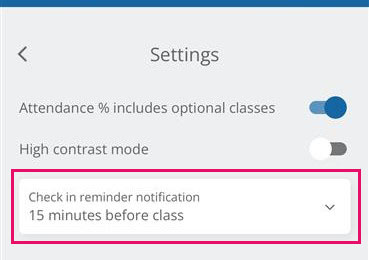
Within the app you can also amend when you receive the check-in reminder, however we recommend you set this reminder for 15 minutes before class. You can do so by:
Open the app > Click "More" in the bottom right-hand corner of the screen > Click "Settings" > Choose "15 minutes before class" in the dropdown.
4. Attendance % includes optional classes
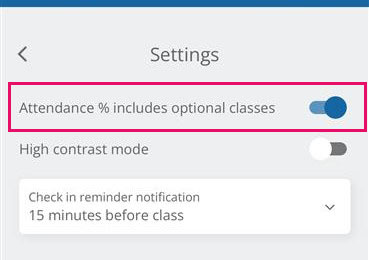
Within the app, you will need to change the setting to include your optional classes into your overall attendance percentage. You can do so by:
Open the app > Click "More" in the bottom right-hand corner of the screen > Click "Settings" > Change the toggle to switch on the "Attendance % includes optional classes" setting.
Why is it important we record attendance?
Recording attendance helps us support you throughout your time at City St George’s, ensure you're engaging in your studies and developing to your full potential. We know that engaging well in your studies helps you succeed and develop to your full potential, while inconsistent attendance could have a negative impact on academic performance.
By using the SEAtS mobile app, we are able to improve the way attendance data is recorded and used and identify moments when you may need more support. If you miss classes, we can quickly reach out to you to check if everything is OK and direct you to the relevant teams that can help.
If you have any issues, please fill out our online form and we will get in touch with you.
Please also contact your Lecturer and Course office at the time of the timetabled session to ensure your attendance can be recorded manually. You must do this by the end of your session.
Common FAQs
Why can’t I login with my City St Georges email?
You will need to login using your legacy City email (Firstname.Lastname@city.ac.uk) and password.
Why can't I see my class on my calendar in SEAtS?
If you cannot see your online class in your calendar, this might be because you have not been allocated correctly, contact your Course officer and they will be able to resolve this for you.
Can I join a class I am not registered to be in?
No, you will not be able to join in if you are not allocated to that class, your timetabled session will not include a class link to join.
I’ve joined my class; how do I check my attendance has been captured?
To check your attendance has been captured, navigate back to the SEAtS student mobile app, in your calendar next to the relevant session you are checking into you should see a green tick with ‘Attended’ underneath.
Who do I contact if I have any issues?
For all other issues, including with the app, you should contact the IT Service Desk on +44 (0)20 7040 8181, or online through the IT Self-Service Portal.
Lateness and Absences
Can I join my class late?
Joining your online class is the same as tapping in for in-person classes.
- If you join within 15 minutes of the start → you will be marked as “Attended”.
- If you join 15–30 minutes after the start → you will be marked as marked “Late”.
- If you join more than 30 minutes after the start → you will be marked as “Absent”.
The earliest you can mark your attendance is 15 minutes before the scheduled start.
I can’t make a class, what should I do?
For absences of 7 days or less you do not need to provide evidence for a one-off absence. However, persistent or repeated short-term absences will result in contact from your School to discuss the impact. You may need to contact your lecturer or programme team to inform them of your absence.
Requesting an absence
If you know you are going to be absent for a number of days or weeks, for any reason, you must get permission beforehand via the authorised absence form on the SEAtS student mobile App, to do this:
1. click the ‘Requests’ section at the bottom of the app
2. then click the blue plus (+) icon
3. You will be directed to submit a new request, select ‘Absence’
4. Fill in the form accordingly and press ‘Send’
As a City St George's student you are responsible for making up lost learning when you cannot attend. If you know that you have missed content and need to catch up, you should contact your module leader for support.